

Have you ever wondered if your iPhone seems to know it’s really you? It works much like a double lock on your digital door. Instead of just a password, your phone uses features like Touch ID (reading your fingerprint) or Face ID (recognizing your face) to make sure that only you get in.
These smart tools mix advanced technology with easy-to-use design. Every time you tap or glance at your phone, it’s like unlocking a special, secure space for your personal info. It’s a simple step that adds up to a more secure digital life.
What is user authentication on iPhone: Seamless security
User authentication on your iPhone is simply a way to check that you really are who you say you are. It verifies your details to guard your personal info and keep your device safe. Instead of counting only on a password, your iPhone uses cool, modern features like two-step checks (two-factor authentication) and biometrics (that means using your face or fingerprint through Face ID or Touch ID). Think of it like having a double lock on your digital door, one lock is your password and the other is your own unique trait.
These clever methods work hand in hand, making sure that even outdated security tricks won't let strangers in. Imagine entering a room where a friendly guard makes sure your ID card and your face both match before letting you in, that’s the same kind of check your iPhone performs.
Since passwords alone can sometimes be a weak link, Apple’s system layers in extra protection while keeping things simple and user-friendly. Every tap feels like a small step toward a safer digital world, ensuring your identity is locked up tight with some of the best tech around.
Biometric Authentication Methods: Face ID vs. Touch ID on iPhone

Face ID and Touch ID are two smart ways to keep your iPhone extra safe. Face ID uses a special TrueDepth camera to scan your face with lots of tiny infrared pictures. These details get stored in a part of your phone called the Secure Enclave (a safe spot for your private info). It’s like a futuristic checkpoint that quickly checks your face, simple and fast!
Touch ID works by reading your fingerprint with a built-in sensor. Your fingerprint is saved safely in the Secure Enclave too. This means you can unlock your phone or approve a touch-based action with just a gentle tap. If you prefer a fingerprint over face scanning, this method is familiar and reliable.
Both methods are much safer than regular passwords, and they keep your data secure by requiring a part of you, your face or your fingerprint. Behind the scenes, a tool named AuthKitUIService helps apps use these features properly, so your sensitive info is never directly handled by third-party apps.
| Feature | Face ID | Touch ID |
|---|---|---|
| Security | Uses a TrueDepth camera to map your face and stops fakes | Reads your fingerprint and stores it securely |
| Usability | Unlocks your phone without touching it | Works with a quick, simple tap |
| Integration | Runs with AuthKitUIService for smooth app use | Runs with AuthKitUIService for smooth app use |
These tech options make using your iPhone both easy and secure, letting you enjoy high-tech safety with a personal touch.
Passcode and Two-Factor Authentication for Enhanced iOS Security
iOS passcodes are like setting a smart, secret code to lock your phone and apps. They work a bit like a digital lock, so only you can peek at your private stuff. Imagine picking a secret number just for you, only a much tougher one, to keep everything safe. Even if someone finds your phone, they still need your special code.
Two-Factor Authentication, or 2FA (which is just another safety check), adds one more barrier. It asks for both your password and confirmation from a device or phone number you trust. This extra check makes it much harder for strangers to get in, even if they guess your password. Sometimes, apps even add a separate passcode with your fingerprint or face scan to keep things extra secure.
When you use both a passcode and 2FA, you build a really strong shield for your login. Every time you sign in, your information goes through several checks before access is granted. This layered approach makes your digital life a lot safer.
How to Set Up and Manage Authentication Settings on Your iPhone
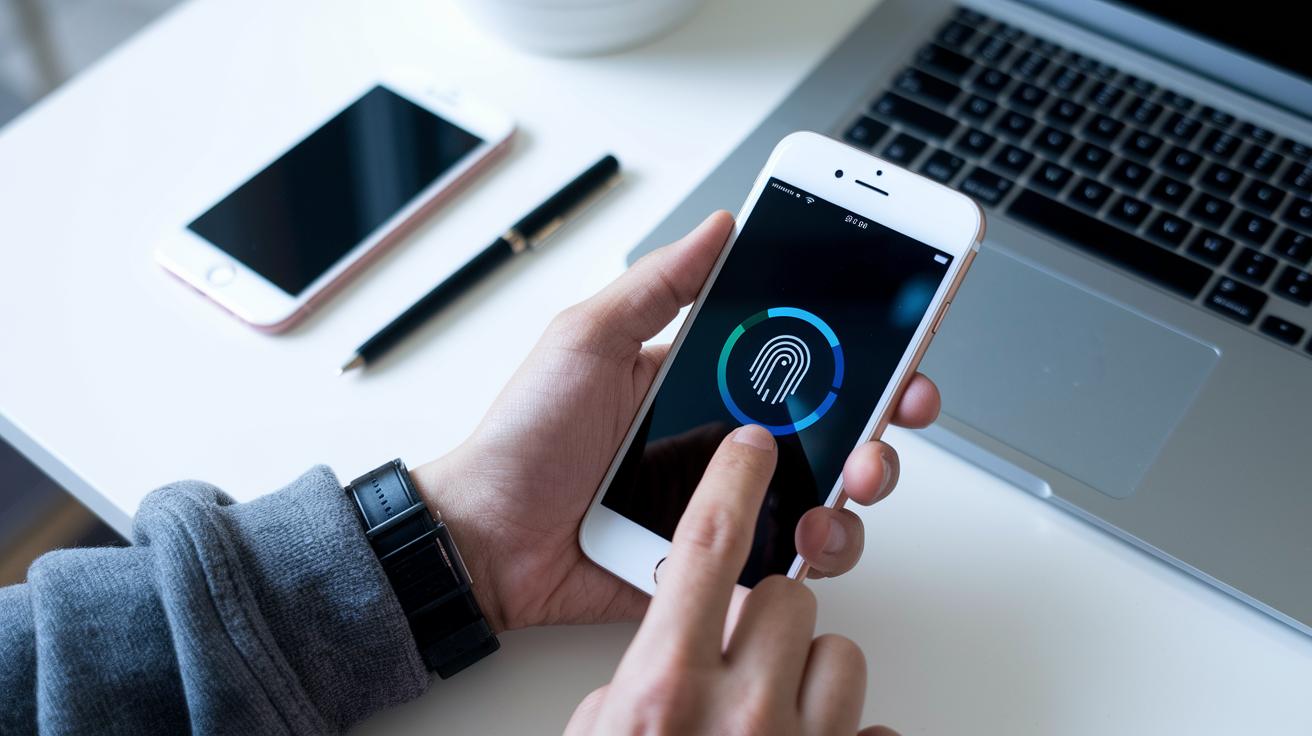
Keeping your iPhone safe and simple is easier than you might think. Your device walks you through setting up Face ID or Touch ID, it's like following a recipe to secure your digital door. Just tap on Settings, then choose Face ID & Passcode or Touch ID & Passcode, and you’re ready to go.
There’s also a neat tool called Guided Access. It locks your screen to a single app when you need to share your phone or focus on one task. And hey, don’t skip those iOS updates, they often bring improvements to how well your security works.
Here are six easy steps to get started:
- Open Settings and tap Face ID & Passcode or Touch ID & Passcode.
- Follow the on-screen steps to set up your face or fingerprint recognition.
- Choose a strong passcode to boost your protection.
- Go to Settings > Accessibility > Guided Access and activate it.
- Enjoy smooth sign-ins with apps that support AuthKitUIService.
- Check for iOS updates regularly by going to Settings > General > Software Update.
By following these steps, you can enjoy a secure and stress-free experience every time you unlock your iPhone.
Security Benefits and Best Practices for iPhone Authentication
Using secure authentication on your iPhone means more than just unlocking it, it protects your digital world like a friendly guard who only lets the right person in. Features like Face ID and Touch ID keep kids, friends, or anyone else from sneaking into your private apps and data.
Pairing these biometric checks with a strong passcode adds an extra shield against thieves. It’s like locking up a treasure chest with both a smart key and a secret code. Your unique features team up with a passcode you pick to keep everything safe.
Regular iOS updates help keep these security measures sharp and steady. They fine-tune the sensors (making them work even better) and boost the methods that guard your data. Keeping your software current is a smart move that makes your digital experience smooth, trusted, and secure.
Troubleshooting Common iPhone Authentication Issues
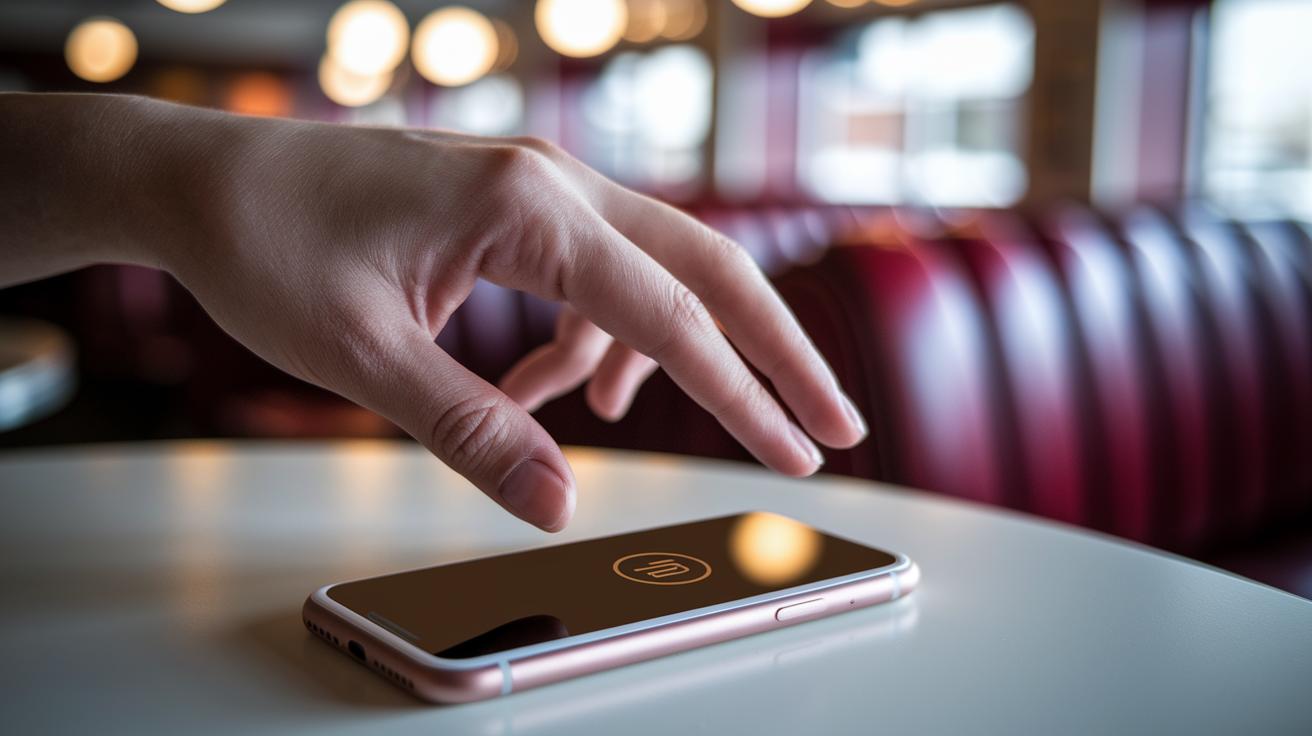
Sometimes your iPhone might not recognize your fingerprint or face, or you might see an "Authentication Failed" message. This usually happens for a few different reasons, but most issues can be fixed with a few easy steps. Dirt or a slight misalignment on the TrueDepth camera (used for facial recognition) or fingerprint sensor can cause these hiccups. Also, if you type your passcode too many times, your device might lock you out for a while. Keeping your iPhone updated with the latest iOS version helps smooth out these glitches. And if the AuthKitUIService (the part that manages sign-in) gets a bit confused, a quick reboot or force-closing the app can often set things right.
Below are some common issues along with simple fixes:
-
Issue: "Authentication Failed" during biometric scans.
Remedy: Gently clean the TrueDepth camera or fingerprint sensor to clear any blockages. -
Issue: Multiple incorrect passcode entries causing a lockout.
Remedy: Wait out the timeout period or restart your phone. -
Issue: Biometric data not matching due to sensor misalignment.
Remedy: Adjust your face or finger placement during the scan. -
Issue: Unresponsive AuthKitUIService sign-in screens.
Remedy: Force-close the app and open it again. -
Issue: Outdated software leading to unexpected errors.
Remedy: Update to the latest iOS version for a smoother performance.
Final Words
In the action, we explored how what is user authentication on iphone transforms digital access with smart biometrics, simple passcodes, two-factor security, and easy setup steps. We broke down the advanced layers that keep your data safe and streamlined user management in an ever-evolving tech landscape.
Each section shared practical insights and tips to overcome common hurdles. The innovative solutions and security best practices here help build not just tech-enabled systems, but also a more secure, efficient future.
FAQ
What is user authentication on iPhone screen time and how does it relate to app controls?
The user authentication on iPhone screen time means confirming a user’s identity before adjusting app usage settings. This process ensures that only authorized users can change screen time controls and access protected features.
What is Authentication Services UI on iPhone and in Apple systems?
The Authentication Services UI on iPhone provides a secure interface for signing in, whether using biometrics like Face ID or Touch ID. It standardizes and simplifies the verification process across apps.
What do Family Controls authentication UI and Limited Access prompt view mean on iPhone?
The Family Controls authentication UI and Limited Access prompt view on iPhone refer to the features that ensure only approved users access specific apps or settings, offering a layer of control particularly useful for parental oversight.
What is the purpose of user authentication on an iPhone?
The purpose of user authentication on an iPhone is to check that the person trying to access device data is allowed to do so. This verification keeps your personal information and sensitive settings secure.
Where is authentication on my iPhone located?
The authentication on your iPhone is managed in the settings—specifically under Face ID & Passcode or Touch ID & Passcode. This area lets you configure secure methods to access your device.
What does it mean to authenticate on an iPhone and what does an authenticator do?
To authenticate on an iPhone means proving your identity using options like passcodes or biometrics. An authenticator plays a role by managing these verification methods and sometimes even generating extra security codes.