

Ever think about whether your digital life is really safe? Imagine your most private cloud data, like photos, backups, and even your bookmarks, protected by a secret code that only you know. It’s like giving your favorite locker an extra lock.
Cyber threats are growing every day, so this extra layer of security really matters. By beefing up your cloud’s defenses, you're not just saving data, you’re taking a clear step toward a safer digital world for tomorrow.
Understanding Advanced Data Protection: An Expert Overview

Advanced Data Protection (ADP) is a modern way to keep your cloud data super safe. It adds extra protection to ten more types of iCloud data, like your photos, backups, and bookmarks, even if it's already being shielded by the usual 14 data types. Think of it like giving your most sensitive information an extra lock.
Even though iCloud data is safe while it's moving and when it's stored, the keys to unlock it usually sit with the service provider. With ADP turned on, it's like sending a secret note that only the right person can open. Without ADP, someone else might legally be able to read that note if needed.
To use these strong security methods, your device needs to run the newest systems, like iOS 16.3+, iPadOS 16.3+, or macOS Ventura 13.2+. When ADP is active, it also turns off web access via iCloud.com by default. You can let yourself have access temporarily if you need to.
Keep in mind, older devices that don’t support these updates have to remove their Apple ID. This means you could lose access to things like the App Store or streaming apps. In our current digital age, with warnings about IoT malware and new privacy laws, using ADP has become a must-have for companies and tech pros who want full privacy protection and solid encryption.
Advanced Data Protection for Cloud Backups: Implementation Guide

Turning on Advanced Data Protection (ADP) on every trusted device, whether it’s your iPhone, iPad, or Mac, is a key part of keeping your cloud backups secure. Make sure your device is updated to the latest operating system; older ones might need to remove their Apple ID, which can cut off access to the App Store and streaming apps. Once ADP is active, access through iCloud.com turns off by default, but you can temporarily allow web-based decryption on a trusted device if needed. This setup helps keep sensitive information like iCloud Photos, Backups, Drive Files, Safari Bookmarks, and Notes extra safe.
ADP boosts your security by adding end-to-end encryption to 10 extra data types on top of the usual 14. Think of it as giving your personal data the protection of a digital safe. The extra lock uses smart security methods from cryptography (basically, clever ways to lock down your info) to keep your digital life secure. And when you set up your cloud storage, it’s important to follow best practices for cloud security. This ensures everyone, whether a business or a regular user, has a fast, up-to-date, and safe digital space.
| Data Category | Protection Level – Default vs ADP |
|---|---|
| iCloud Photos | Standard Encryption vs Full End-to-End Encryption |
| Backups | Basic Protection vs Enhanced ADP Encryption |
| Drive Files | Regular Safeguard vs Augmented Encryption |
| Safari Bookmarks | Simple Lock vs ADP-Enhanced Security |
| Notes | Default Lock vs State-of-the-Art ADP Encryption |
- Keep all trusted devices updated with the latest OS.
- Make sure two-factor authentication is turned on for each device.
- Regularly check the data you sync.
- Watch out for any temporary decryption requests on your trusted devices.
- Set up recovery keys or pick a trusted contact for recovery.
- Follow cloud security best practices when setting up your storage.
- Stay updated on new methods in cryptography (advanced ways to secure your data) to keep ahead of evolving threats.
Advanced Data Protection on Mobile Devices: Activation & Recovery

Before you begin, make sure your phone is ready. Your device should run iOS 16.3 or a similar system, have two-factor authentication (an extra step to confirm your identity) turned on, and use a strong passcode. This guide walks you through setting up advanced protection and choosing a backup option.
- Open Settings, tap your name, then go to iCloud and select Advanced Data Protection.
- Tap Enable, then choose your backup method: either a Recovery Contact or a Recovery Key (like having a spare key for your house).
- When asked, confirm your two-factor authentication.
- Give your devices a moment to update and apply the new security settings.
- Look over your recovery options. Pick whether a trusted contact or your unique recovery key works best for keeping your access safe.
- Make sure every device linked to your account updates these new settings.
- Check that your device runs iOS 16.3 (or an equivalent system) before starting.
- Ensure two-factor authentication is set on every device so nothing gets in the way.
- Use a strong passcode on all your mobile devices.
- If a device is slow to sync, try re-syncing or updating it.
- If you run into any issues, a quick restart can help refresh the settings.
advanced data protection: Empowering Cyber Resilience

When advanced data protection is on, you control your digital privacy. You decide who gets temporary web access, which devices you trust, and even check your data lock status (encryption, a way to lock down your data) right in Settings. Picture your screen lock set so tight your device acts like a vault, quick to close, yet welcoming with a tap.
The privacy options let you require a passcode for any account change and switch backups for sensitive information on or off. In other words, you can match your phone’s security to your everyday routine. Think of it like using a special key: any change in major settings needs your secret code.
Want to boost your digital safety? Try these straightforward tips:
| Tip | Description |
|---|---|
| Audit Devices | Regularly review which devices can access your data. |
| Disable Legacy Access | Block older, less secure devices from your network. |
| Rotate Keys | Set reminders to update your security keys now and then. |
These simple steps help protect your information, balancing ease of use with top-notch security.
Advanced Data Protection Tools: Comparative Analysis & Best Practices

When you look at default iCloud encryption, it protects 14 types of data. But with Advanced Data Protection (ADP), you get extra security for 10 more types of data, including iCloud Drive and Safari information. With ADP, you control the keys (the secret codes to lock your data) instead of the provider. Sure, that means a few extra steps like keeping your recovery keys safe or choosing who you trust, but it also gives you greater privacy and control. Plus, your data is guarded with strong protocols both when it's moving and when it's stored, so even if one layer is compromised, there’s another ready to keep things secure.
On one hand, symmetric encryption using AES-256 is very fast and strong. On the other hand, asymmetric encryption with ECC (elliptic-curve cryptography, which uses smaller keys for the same level of security) offers a similar level of protection. IT pros often compare these methods to find the best balance between speed and safety, depending on what your organization needs and the kind of data you want to protect.
Adding another layer, many organizations also turn to third-party tools like VeraCrypt, Boxcryptor, or enterprise key management systems. These tools work smoothly with your current setup. They follow a defense-in-depth approach by combining different security measures, like the encryption on your computer, special hardware keys (TPM modules), and even network segmentation. This layered method, which fits well with zero trust ideas, means that if one defense doesn’t work, another is ready to step in. Mixing both built-in and third-party solutions helps organizations run faster, stick to regulations, and keep data transmissions secure. All in all, comparing these tools can build a flexible and tough cyber defense that adjusts to new challenges while keeping your data safe.
Advanced Data Protection Risk Assessment & Compliance

Today, keeping your data safe is a bit like locking your front door and also knowing which burglars might be lurking around. IT leaders need to think about all the ways threats can sneak in, like IoT malware (malicious software that can take over smart devices), while keeping an eye on new laws that might change privacy rules. This first step helps you see what needs extra protection and which parts might be at risk. Regular checks make sure your data stays clean, and safe pathways like TLS 1.3 (a secure method for transferring data) or VPN tunnels keep your information protected as it travels.
When it comes to following the rules, you match your security measures to well-known standards such as GDPR, CCPA, ECPA, and even industry standards like HIPAA or FINRA. In simple terms, it’s like making sure every door in your digital house has a proper lock.
Critical controls include:
- Regular integrity checks to spot any change or tampering.
- Safe transport methods to guard data while it’s moving.
- Encrypted backups with verified checksums (a way to check data hasn’t been changed) to ensure everything stays as it should.
For backup security, it’s smart to follow these best practices:
- Set up storage that can’t be altered once data is saved.
- Run regular practice drills to see that restoration really works.
- Keep encrypted copies off-site for an extra layer of safety.
These steps help IT leaders build a strong, resilient system, a digital fortress that stands tall even when new challenges come along.
Troubleshooting & Disabling Advanced Data Protection Protocols
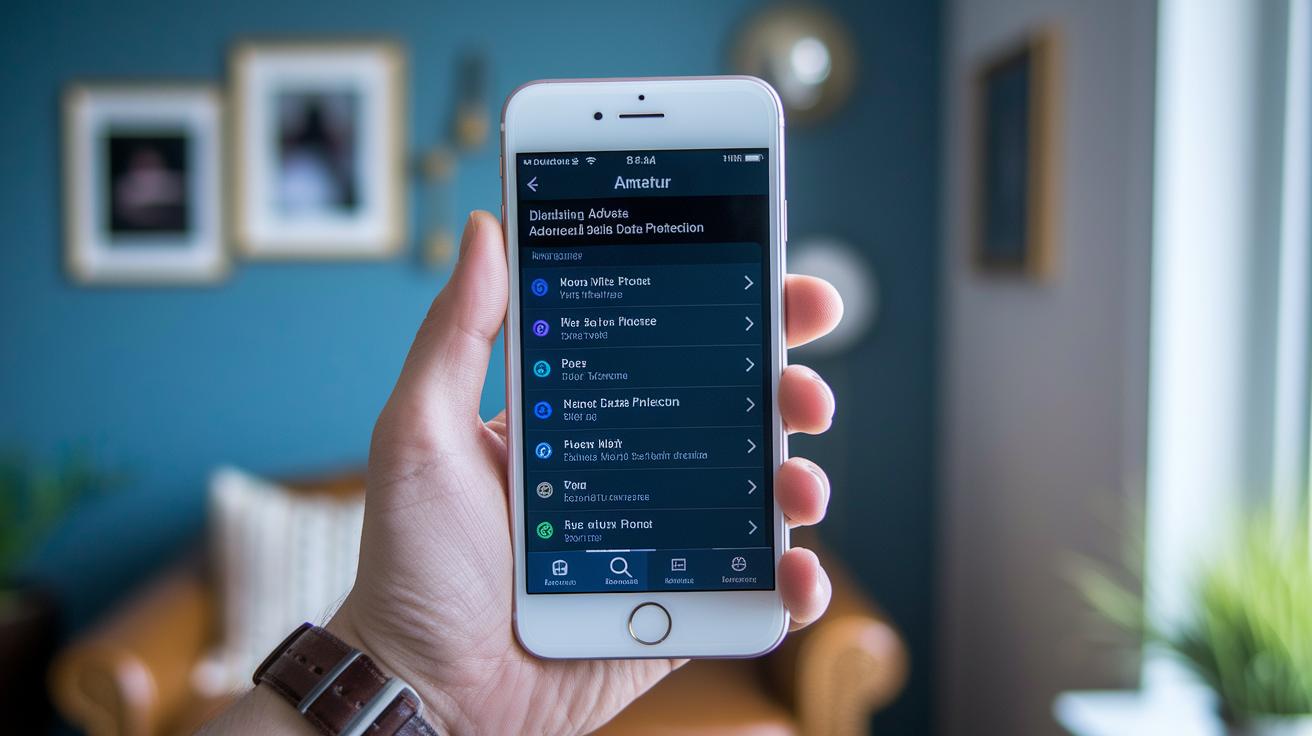
If you're ready to turn off Advanced Data Protection (ADP), here's how you can do it on each device you trust. First, go to Settings, tap your name, then head to iCloud and look for Advanced Data Protection. Tap Disable, and follow the directions that pop up on your screen. Doing this will switch you back to Apple’s old key-management system and let you use iCloud.com again. Keep in mind, though, turning off ADP might cause some issues with older operating systems and could make you re-authenticate in the App Store.
Once you've switched off ADP on all your devices, take a moment to check everything. Sometimes devices might not sync properly if they aren’t updated at the same time. Also, a lost recovery key can lead to problems when trying to restore your device, and a few small mistakes with web-access settings can create surprises.
Steps to disable ADP:
- Open the Settings app on your device.
- Tap your name and then select iCloud.
- Find Advanced Data Protection and tap Disable.
- Follow the on-screen instructions on every device linked to your account.
- Confirm and complete any re-authentication requests that come up.
Things to remember:
| Tip | Why It Matters |
|---|---|
| Update all devices | Ensures smooth syncing across your devices |
| Keep your recovery key safe | A missing key might cause restore problems |
| Watch for sync conflicts | Not all devices might update at the same time |
| Reset web-access settings | Prevents temporary issues after turning off ADP |
Following these steps should help fix common issues with device encryption and keep the switching of encryption settings as smooth as possible. Give it a try and see how it goes!
Final Words
In the action, our blog walked through setup and usage of advanced data protection, a way to keep your digital data secure. We covered everything from securing cloud backups and mobile devices to tailoring privacy settings, comparing security tools, and managing risk. Each topic, from technical tweaks like switching off web access to real-world benefits, ensures your digital world feels safe and streamlined.
With advanced data protection, you can confidently transform and grow your digital presence.
FAQ
What is advanced data protection?
The advanced data protection is a feature that extends encryption by safeguarding 10 extra iCloud data types with end-to-end encryption, giving you tighter control over your keys and making your personal data more secure.
Should I turn on advanced data protection on my iPhone?
The decision to enable advanced data protection on your iPhone comes down to your desire for added security. It wraps extra iCloud data in stronger encryption but may restrict default web access.
What are the key benefits of Apple’s advanced data protection?
The Apple advanced data protection boosts your device’s defense by encrypting additional data categories and reducing legal access risks. It offers stronger privacy while requiring a modern OS and effective key management.
How is advanced data protection discussed on Reddit and in reviews?
The advanced data protection attracts mixed reviews on Reddit and other platforms. Many say it greatly enhances privacy, though some note challenges with device compatibility and temporary loss of web access for iCloud content.
What is the role of a recovery key with advanced data protection?
The advanced data protection recovery key acts as a backup unlock method if you lose access to your trusted contacts. It is crucial because missing this key can lead to permanent data lockout.
What are the downsides of advanced data protection?
The advanced data protection’s downsides include reduced iCloud.com access, possible compatibility issues on older devices, and the need for diligent recovery key management, which some users may find challenging.
Should I use advanced data protection for my iCloud?
The advanced data protection for iCloud is a smart choice if you value strong privacy measures. It secures more data with robust encryption, though you should ensure your devices meet the necessary system requirements.