

Ever wonder if your password alone is enough? Sometimes one password just isn’t secure. Google Authenticator adds an extra layer of protection by updating your login codes every 30 seconds, like a secret lock only you can open.
Even if someone gets a glimpse of your password, they still won’t be able to break in. This little tool works quietly in the background, giving you peace of mind and a smooth, secure digital experience.
Google Authenticator Secures Your Account Effortlessly
Google Authenticator is a two-factor authentication tool that has been boosted to better protect your online accounts. It asks for a second proof of your identity, usually with a time-based one-time password (OTP, a code that changes every 30 seconds). This extra step makes it much tougher for someone to break in even if they know your password.
It works without an internet connection on Android, iOS, and even smartwatches like the Apple Watch. Picture this: every 30 seconds, your device creates a fresh, secure code, almost like handing you a new key every time you log in. This means even if someone sneaks a peek at your password, they still can’t get in without that quick-changing code.
Google Authenticator plays nicely with Gmail and many other services. That makes it a breeze to keep an eye on all your accounts. A simple QR code scan (a small picture code that holds data) links your account securely, kind of like following a secret map that leads straight to your digital treasure chest.
For those who switch between devices, there’s also a browser extension for Windows, macOS, or Linux. It works just like the mobile app, giving you secure codes offline. Imagine having a dependable security guard on your computer or phone. This blend of ease and strong protection is what makes Google Authenticator a top choice for modern digital security.
Google Authenticator Mobile App Installation & OTP Setup Guide

First, open your preferred app store on your phone, Apple App Store for iPhone users or Google Play Store for Android users. Type in “Google Authenticator,” then tap to download and install the app. This little tool makes your two-step verification super secure while keeping things easy and friendly. It’s like having a special key to a secret lock, without your phone, that door just won’t open.
Once the app is installed, launch it and agree to give it access to your camera. This step is key because the app uses your camera to scan QR codes during setup. When you see a QR code on your account settings page (for example, in Gmail), tap the “+” icon and hold your phone steady as the app scans the code. Think of it as following a treasure map, the better the scan, the closer you get to your digital vault of security.
After the QR code is scanned, the app starts generating time-based one-time passwords (OTPs) that change every 30 seconds. This means each code is fresh and unique, keeping pesky intruders away from your account. Try out the new code to make sure everything is set up properly. If scanning doesn’t work or if you’d rather do it by hand, just use the option to type in the secret key you see on the setup page.
And if you’re without your mobile device, don’t worry, there’s a browser setup option in the next section. While this guide focuses on the mobile approach, the steps help you build a strong foundation for protecting your online accounts with Google Authenticator. Follow these easy steps and enjoy a secure, smooth digital experience. Your safety really matters to us.
Google Authenticator Web Browser & Desktop Extension Setup
Google Authenticator works great through a Chrome extension when you can’t use your phone. This neat add-on creates security codes called TOTP (that’s a fancy term for a code that updates every 30 seconds) right on your desktop. It keeps your account safe no matter if you're on Windows, macOS, or Linux.
To get started, open the Chrome Web Store on your computer and type “Google Authenticator” into the search box. When you see the extension pop up, click to install it. Once it's on your system, pin it to your toolbar for easy access, as if you're placing a trusted key right where you can see it. It’s a quick and simple way to have fresh codes ready every time you need to log in.
This desktop option really comes in handy when your phone is out of reach. When you're asked for two-factor authentication, the extension works quietly in the background, giving you a secure code so you can continue without any hassle. Think of it as a silent guardian that’s always on duty, modernizing your security and making your verification process smooth and effortless.
Google Authenticator Mobile Setup & Account Configuration

After you’ve linked your account using a QR code or entered a secret key manually (that’s just a special code for secure access), follow these simple steps to keep your entries organized.
First, rename each account so it’s easy to recognize, for example, change a long email address to “Work Email” for quick identification.
Next, reorder your accounts so that the ones you use most often come first, much like placing your favorite apps on your home screen.
Finally, remove any unused entries to keep your list neat and clutter-free, just like cleaning out old files from your computer.
Google Authenticator Backup, Recovery & Multi-Device Management
To keep your account safe, start by making backup codes from each service’s settings. Think of these codes as spare keys in case you lose access. For example, when you set up two-step verification for your email, create backup codes and store them somewhere safe, a printed copy or a trusted password manager works great (like keeping a secret recipe on paper).
Here’s another handy trick: use Google Authenticator’s Transfer Accounts option in the app's Settings. This feature lets you move your accounts by exporting them as a QR code (a quick visual snapshot) from your old device. Then, simply scan the code on your new device. It’s a bit like copying an important document before relocating to a new office.
If you’d like to use Authenticator on more than one device, import the same QR code on each device before you remove the old one. This keeps your two-step verification consistent, no matter which gadget you’re using. It’s a simple trick that helps all your devices stay in sync.
When switching devices, don’t forget to update your backup codes and remove any gear you no longer use. It’s a good idea to check your settings regularly so all your linked accounts are safe. Think of it like checking your home security system, making sure every door is locked and every sensor is active.
By following these steps, you can make device transitions smooth and secure. This approach lowers the risk of getting locked out and keeps your digital life safe, wherever you go or whatever device you choose.
Google Authenticator Troubleshooting: Sync and Login Issues
When you run into an "Invalid code" error, it usually means your device's clock might be off. Check your settings and switch on automatic date and time, or set it manually to network time. Think of it like making sure your watch is right before you head out, it's all about keeping your digital world in sync.
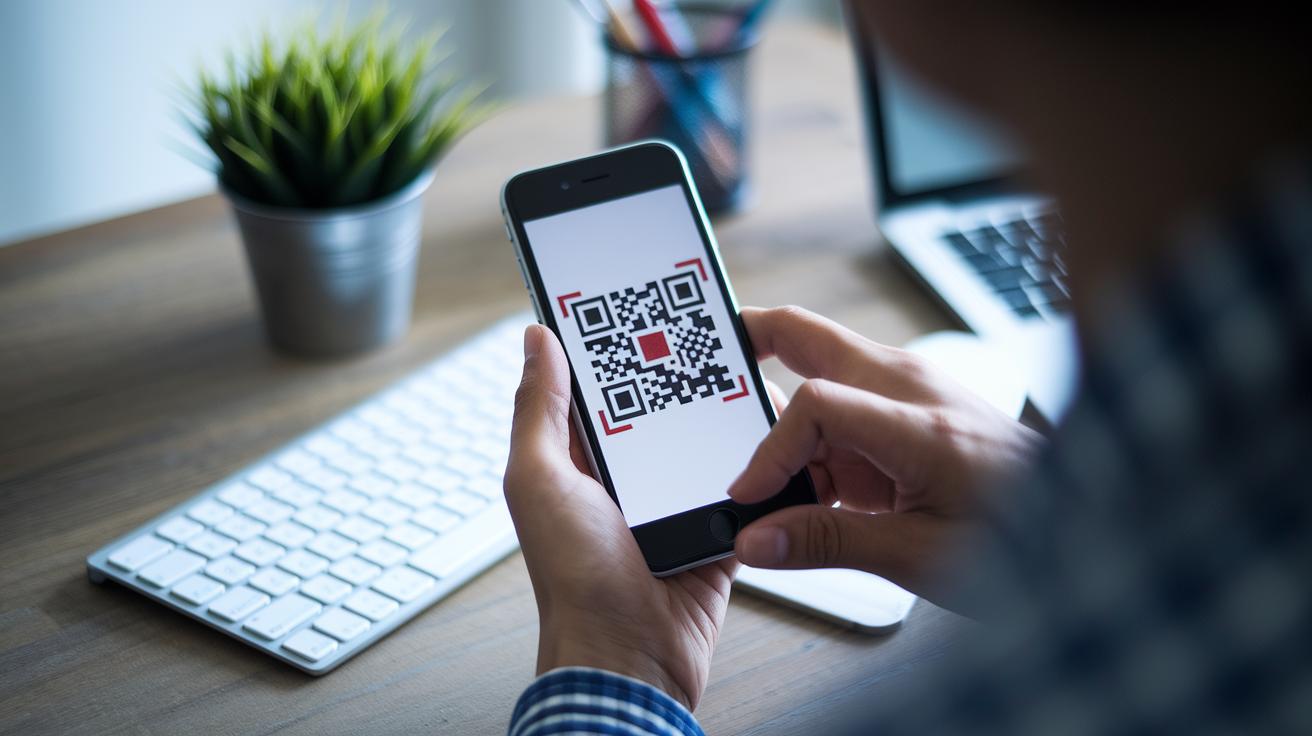
Sometimes, a QR scan might not work well because the camera can’t focus properly or the QR code has expired. If that happens, give your camera lens a quick clean and then generate a new QR code in your account settings. It's a bit like wiping a foggy window clean so you can see the view clearly.
If syncing the time and re-scanning the QR code still doesn’t do the trick, use the backup codes you got when you first set up your account. These are like spare keys that can save the day when the primary ones fail. You might also try reconfiguring your account by scanning a new QR code to restore the connection.
By trying these simple troubleshooting steps, you can fix login issues and keep your two-factor verification working smoothly. Small fixes like syncing your clock or cleaning your camera can really help keep your account safe.
Google Authenticator vs Other MFA Apps & Best Practices
When you compare Google Authenticator with other apps like Microsoft Authenticator and Authy, its simple design really stands out. It creates temporary codes offline (think of them as ever-changing secret numbers) without relying on cloud backups. In contrast, Authy keeps a backup of your codes in an encrypted cloud, and Microsoft Authenticator ties in closely with Microsoft accounts and Windows Hello.
For those using Google Authenticator, here are a few friendly tips:
- Update the app regularly to catch the latest security improvements.
- Use a hardware security key or SMS backup only when you really need it.
- Rely on TOTP (a way to generate short-lived codes) for broad compatibility on most platforms.
These guidelines keep your digital life safe without adding extra complexity. Google Authenticator remains a trusted, no-fuss option for secure two-factor authentication.
Final Words
In the action, we walked through everything, from the basics of setting up your google authenticator to detailed steps for mobile, desktop, and QR pairing methods. We also explored how to keep backup codes safe, troubleshoot any hiccups, and even compare it with other MFA solutions. These tips make digital security simple and effective for everyday use.
Embracing these practices helps you feel confident and ready for a safer digital experience every day.
FAQ
What is Google Authenticator app?
The Google Authenticator app is a mobile tool that uses time-based codes (codes changing every 30 seconds) to add an extra layer of security by verifying your identity during login.
How do I download or install Google Authenticator?
The Google Authenticator download is available from the Apple App Store, Google Play Store, or as an APK file; installation involves scanning a QR code to set up your two-factor authentication codes.
How do I access Google Authenticator and get my 6-digit code?
Accessing Google Authenticator is as easy as launching the app on your mobile; it automatically generates a fresh 6-digit code every 30 seconds for secure logins.
Can I use Google Authenticator on my computer?
Google Authenticator on your computer is achievable through a browser extension that generates time-based codes offline, offering a handy desktop solution for two-factor verification.
What is the Google Authenticator extension?
The Google Authenticator extension is a browser plugin (for example, in Google Chrome) that allows you to produce time-based codes directly on your desktop, providing flexible two-factor authentication.
What is the downside of using Google Authenticator?
The downside of using Google Authenticator is its lack of automatic cloud backup, meaning you must manage backup codes and device transfers manually if you lose or change your device.
How does Google Authenticator compare with Microsoft Authenticator and Duo Mobile?
Google Authenticator is lean and works offline without cloud backups, while Microsoft Authenticator and Duo Mobile may include features like cloud sync and extra verification options, serving different security needs.
What is two-factor authentication and why is it important?
Two-factor authentication is a security method that requires two types of proof to verify your identity, adding an essential extra barrier against unauthorized access to your accounts.
How does Google Authenticator integrate with services like Gmail, Google Chrome, and Google Lens?
Google Authenticator seamlessly works with services such as Gmail by generating secure, time-based codes, while its browser extension integrates with Google Chrome, enhancing overall account protection.